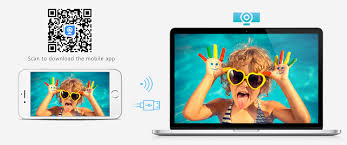
iVCam Webcam for Android - Download Latest Version
In today’s digital era, having a reliable webcam is essential for remote work, online meetings, live streaming, and virtual communication. The iVCam Webcam App is a revolutionary solution that turns your Android smartphone into a high-quality webcam for your PC. This comprehensive guide will walk you through the process of downloading, installing, and setting up iVCam Webcam on your Android device. Along the way, we’ll highlight its features, benefits, and tips to ensure you make the most of this innovative app.
What is iVCam Webcam App?
The iVCam Webcam App is a versatile application designed to convert your Android smartphone into a webcam for your Windows PC. It offers superior video quality compared to most standalone webcams and is perfect for video conferencing, live streaming, online teaching, and more. By leveraging your Android device’s advanced camera features, iVCam provides users with a cost-effective and high-quality alternative to traditional webcams.
Why Use iVCam Webcam on Android?
Affordable Alternative Why invest in an expensive webcam when you can use your Android device? iVCam eliminates the need for costly hardware by utilizing your phone’s camera.
Superior Video Quality Smartphones often have better cameras than most built-in or standalone webcams. With iVCam, you can enjoy crisp and clear video resolution up to 4K.
Easy Setup The app is user-friendly and easy to set up, even for beginners. You can connect via Wi-Fi or USB, giving you flexibility in how you use it.
Compatibility iVCam works seamlessly with popular video platforms like Zoom, Skype, Microsoft Teams, Twitch, and OBS Studio.
Versatile Features From background blur to adjustable frame rates, the app provides a range of customization options to suit your specific needs.
Step-by-Step Guide to Download iVCam Webcam App for Android
Step 1: Visit the Google Play Store
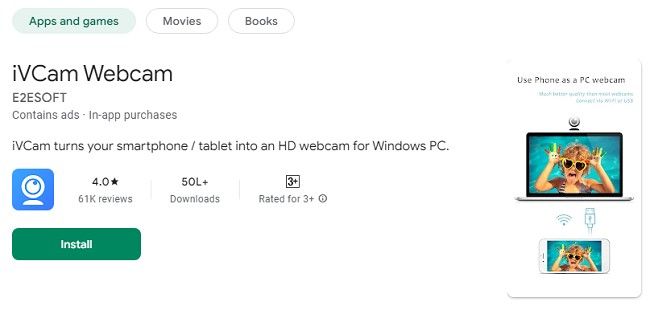
The first step is to download the iVCam Webcam app from the Google Play Store. Follow these instructions:
Open the Google Play Store app on your Android device.
Use the search bar to type "iVCam Webcam" and tap on the search icon.
Locate the official app by e2eSoft (the developer) and click on it.
Tap the Install button to begin the download.
Step 2: Wait for Installation
Once you tap “Install,” the app will automatically download and install on your device. Ensure you have a stable internet connection during this process.
Step 3: Install iVCam Client on Your PC
While the app installs on your Android device, download the iVCam client software on your Windows PC:
Open a web browser on your PC and go to the official iVCam website.
Download the Windows client and follow the on-screen instructions to install it.
Step 4: Launch the App on Both Devices
Once the installation is complete:
Open the iVCam app on your Android smartphone.
Launch the iVCam client on your PC.
Step 5: Connect Your Devices
You can connect your Android device to your PC via Wi-Fi or USB:
Wi-Fi Connection: Ensure both devices are on the same Wi-Fi network. The app will automatically detect your PC, and the connection will be established.
USB Connection: Use a USB cable to connect your Android phone to your PC. Enable USB debugging on your phone if prompted.
Step 6: Configure Settings
After the connection is established, customize the app settings to suit your preferences:
Adjust video resolution and frame rate.
Select the desired orientation (portrait or landscape).
Fine-tune other settings like brightness and contrast.
Key Features of iVCam Webcam for Android
High-Resolution Video Enjoy video resolutions up to 4K for crystal-clear visuals.
Real-Time Synchronization The app offers minimal latency, ensuring seamless video and audio synchronization.
Audio Support Use your phone’s microphone for clear audio input during calls or recordings.
Customizable Settings Adjust frame rate, orientation, and quality to suit different applications.
Background Blur and Virtual Effects Add a professional touch with virtual backgrounds and real-time effects.
Multi-Platform Compatibility Works flawlessly with Zoom, OBS Studio, Skype, and more.
Multiple Connection Options Choose between Wi-Fi and USB for flexibility.
Multi-Camera Support Use multiple Android devices to create multi-angle setups for professional streaming.
Benefits of Using iVCam Webcam on Android
Cost-Effective: Avoid the expense of purchasing a separate webcam.
Convenience: Transform your existing smartphone into a versatile webcam in minutes.
Portability: Use your phone anywhere without being tethered to a bulky webcam.
Versatility: Ideal for various use cases, including video calls, online teaching, and game streaming.
Tips for Optimizing Your iVCam Experience
Stabilize Your Device Use a tripod or phone holder to avoid shaky video during calls or streams.
Improve Lighting Ensure you’re in a well-lit area or use additional lighting for better video quality.
Enable Do Not Disturb Mode Prevent interruptions by activating Do Not Disturb mode on your Android phone.
Keep Your Phone Charged Using your phone as a webcam can drain the battery. Plug it in to ensure uninterrupted usage.
Update the App Regularly Check for updates to access the latest features and performance improvements.
Frequently Asked Questions (FAQs)
1. Is iVCam Webcam free to use?
Yes, the app offers a free version with basic features. A premium version is available for advanced functionality.
2. What devices are compatible with iVCam?
iVCam works with Android and iOS devices and connects to Windows PCs.
3. Can I use iVCam for live streaming?
Absolutely! iVCam is compatible with platforms like OBS Studio, Twitch, and YouTube Live.
4. How do I fix connection issues?
Ensure both devices are on the same Wi-Fi network, restart the app, and check your firewall settings on your PC.
5. Does iVCam support USB connections?
Yes, you can connect via USB for a stable and low-latency experience.
6. Can I use iVCam on multiple devices?
Yes, iVCam supports multi-camera setups for dynamic video streaming.
7. What resolution does iVCam support?
The app supports resolutions up to 4K, depending on your phone’s camera.
8. Is the app safe to use?
Yes, iVCam is a secure and reliable application developed by e2eSoft.
Conclusion
The iVCam Webcam App for Android is a game-changer for anyone seeking a cost-effective, high-quality webcam solution. With easy installation, customizable features, and excellent compatibility with popular platforms, iVCam is the perfect choice for professionals, content creators, and casual users alike.
Download iVCam today and elevate your video communication experience. With just a few steps, your Android smartphone can become a powerful webcam that rivals even the most expensive standalone options.
Trending Now
Updates